Introduction
Configure your community's CAD and website from the Order config page.
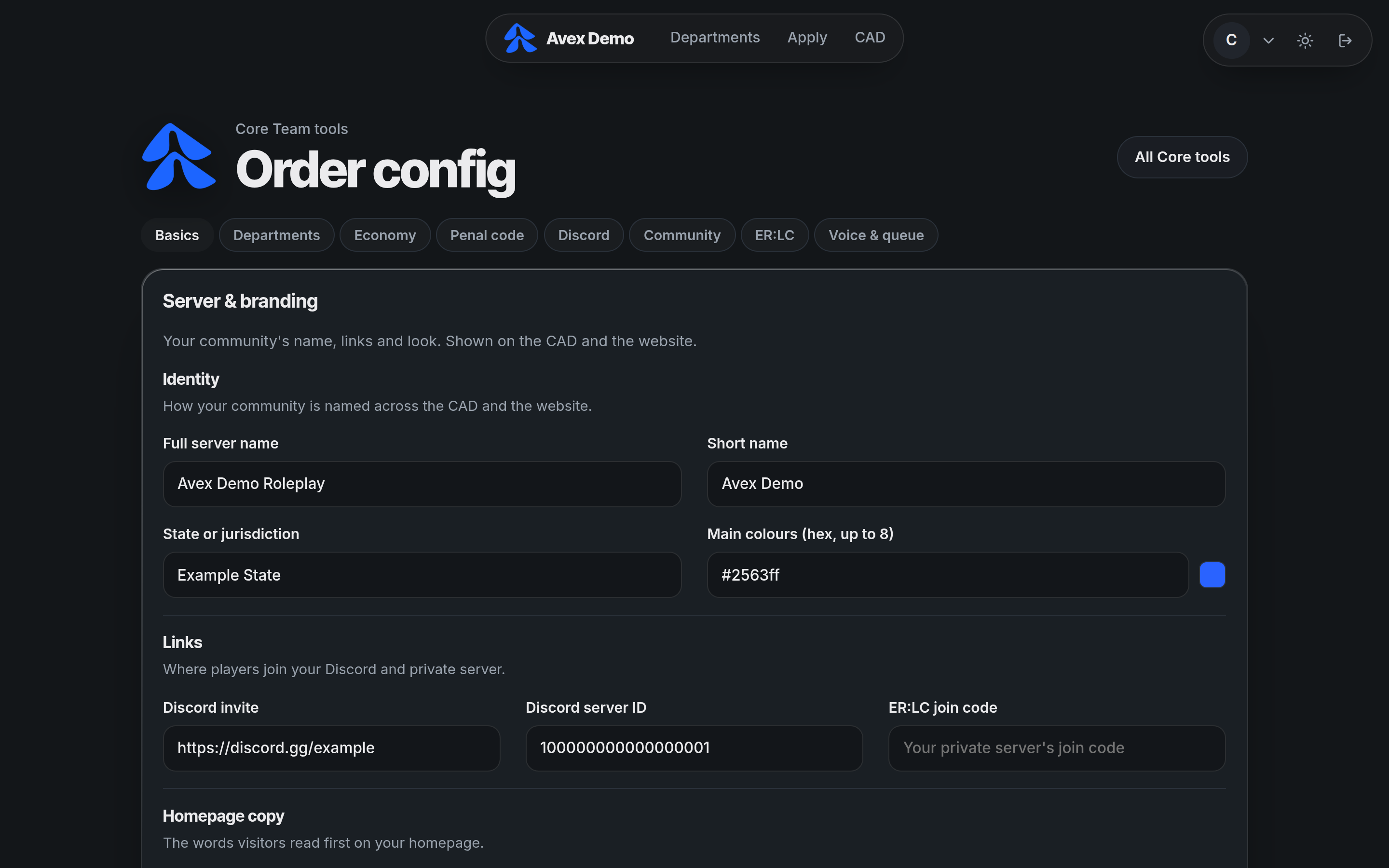
The Order config page is where you finish setting up your community after Avex delivers your site. It lives in the Core panel and covers everything from your server name and branding to departments, pay, charges and Discord roles. Every change you save is checked first and goes live on your site.
Before You Start
Have these ready before you begin. You will paste most of them into the page as you go.
| Item | Where to find it |
|---|---|
| Discord server ID | In Discord, turn on Developer Mode under Settings, Advanced. Then right-click your server icon and choose Copy Server ID. |
| Discord role IDs | Most role fields use a picker. If a field asks for IDs, right-click the role under Server Settings, Roles and choose Copy Role ID. |
| Discord channel IDs | Right-click the channel and choose Copy Channel ID. |
| Discord invite | A permanent invite link to your server, for example https://discord.gg/yourcode. |
| ER:LC server key | In ER:LC, open your private server's Server Settings, then API. |
| Logo and banner | A square PNG logo with a transparent background, and a wide banner of about 1600×900. |
The Tabs
Basics
Server name, links, homepage text, colours, logo and banner.
Departments
Departments, ranks, callsigns, Discord roles and applications.
Economy
Starting money, on-duty pay and membership claims.
Penal code
The built-in charge schedule or your own custom list.
Discord
Servers, access roles, badges and bot channels.
Community
The name and tagline used in feedback and on the sign-in page.
ER:LC
Your private server key, duty sync roles and the live feed.
Voice & queue
Proximity voice, the CAD voice sweep, queue and Discord sync.