Departments Overview
Add, edit and remove the departments that make up your community's CAD.
The Departments tab lists every department on your CAD. Each department has its own name, ranks, callsigns, Discord roles and application. Saved changes go live straight away.
The Department List
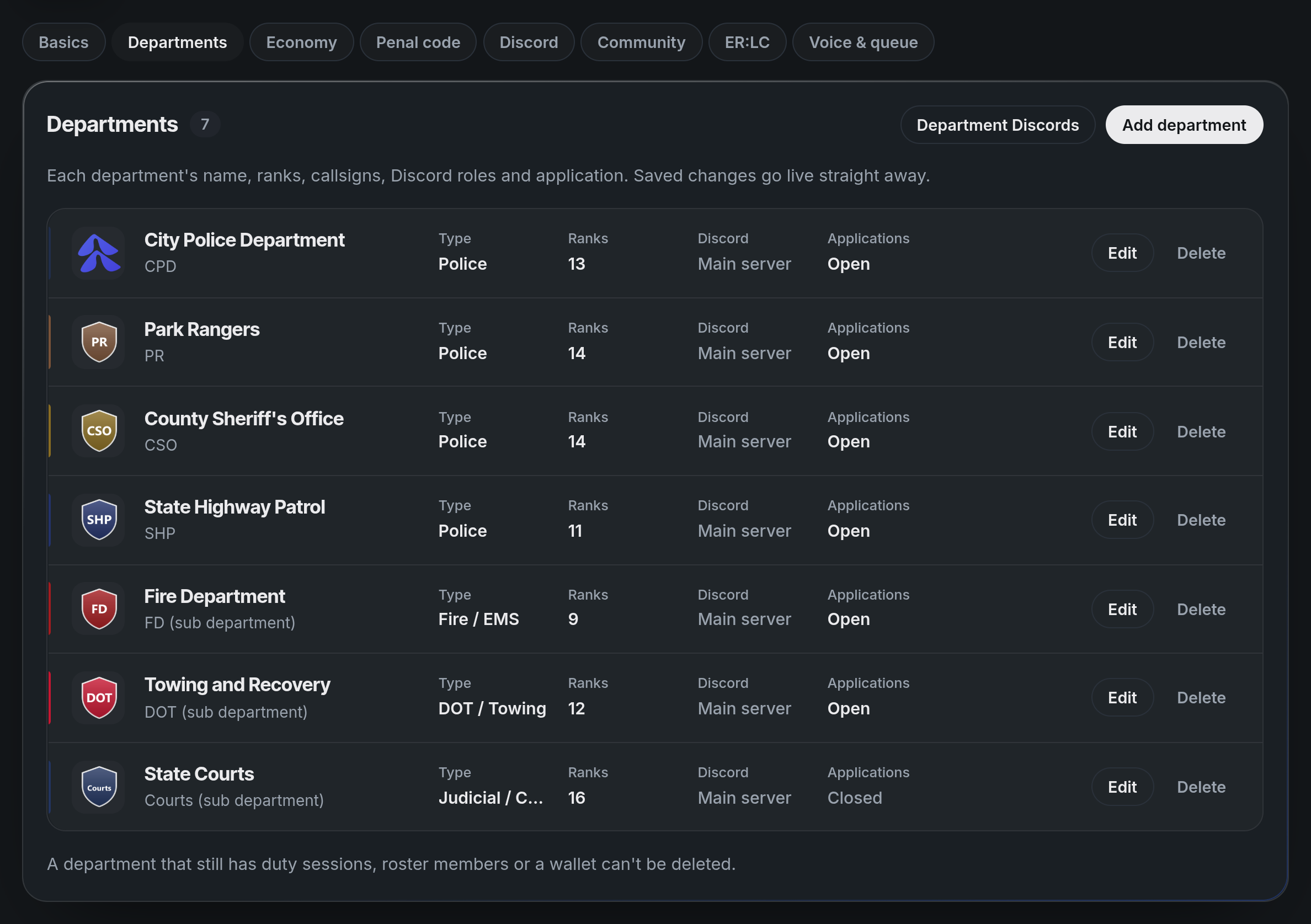
| Column | Meaning |
|---|---|
| Type | The kind of department, such as Police or Fire / EMS. |
| Ranks | How many ranks the department has. |
| Discord | Main server when the department's roles are in your community server, or the name of its own server. |
| Applications | Open when the website form is on, Outside link when the Apply button opens an outside form, and Closed when neither is set. |
Departments marked (sub department) are listed under Sub Departments on your website instead of the main list.
Department Kinds
| Kind | Used for |
|---|---|
| Police | Police, sheriff, highway patrol, rangers and other law enforcement |
| Fire / EMS | Fire and emergency medical services |
| DOT / Towing | Department of Transportation and towing services |
| Judicial / Court | Judges, attorneys and court staff |
| Dispatch | Dispatchers |
The kind decides which CAD tools members see. For example, police members get the police MDT, and court members get court tools.
Adding a Department
Select Add department
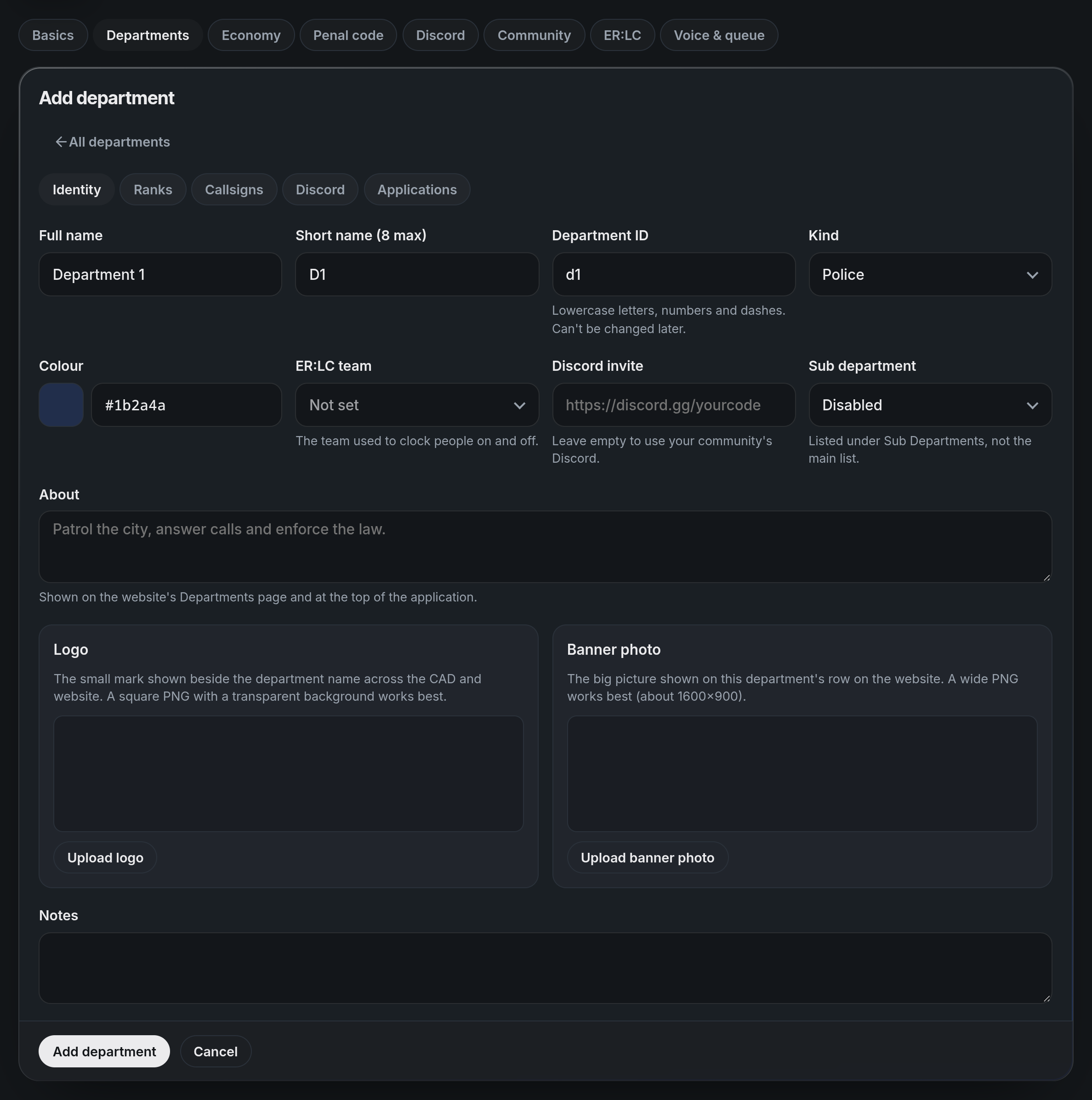
Select Add department at the top of the list. An empty editor opens on the Identity tab.
Fill in the identity
Enter the full name, short name and department ID, then choose the kind. See Identity.
Add ranks and roles
Add at least the ranks the department uses, then choose the Discord roles that grant access. See Ranks and Discord Roles.
Save the department
Select Save department. The department appears in the list and on the CAD.
Editing a Department
Select Edit on a department's row. The editor has five tabs:
Identity
Name, kind, colour, ER:LC team, website text and images.
Ranks
The rank ladder, slots, quotas and rank roles.
Callsigns
Roster numbers and how callsigns are formatted.
Discord Roles
The roles that grant membership, supervisor access and leave.
Applications
The application form, review channels and acceptance roles.
Department Discords
Set every department's invite and server in one place.
Changes across all five tabs are saved together when you select Save department. Select Cancel, then Discard changes, to leave without saving.
Removing a Department
Select Delete on the department's row and confirm.
Departments in use cannot be deleted
A department that still has duty sessions, roster members or a wallet can't be deleted. Remove its members from the roster first, or keep the department and close its applications instead.