Accessing Order Config
Sign in with Discord and open the Order config page in the Core panel.
The Order config page is part of the Core panel on your community's website. Only the people Avex set up as configurators for your order can open it.
Who Can Open It
You can use the Order config page if any of these apply:
- Your Discord account was named as the configurator when you placed your order.
- You hold a Discord role that Avex set up as a configurator role.
You do not need to be on your Core Team to use the page. If you should have access but are refused, contact Avex with your Discord user ID.
Keep access small
Configurators can change everything on this page, including access roles. Only give access to people who manage your community's setup.
Opening the Page
Go to the Core panel
Open your community's website and go to /core/. For example, if your site is https://example.com, open https://example.com/core/.
Sign in with Discord
Select Sign in with Discord and approve the sign-in. You return to the Core panel once you are signed in.
Open Order config
Open Order config. You can also go straight to /core/?page=config. Use All Core tools in the top right to return to the rest of the Core panel.
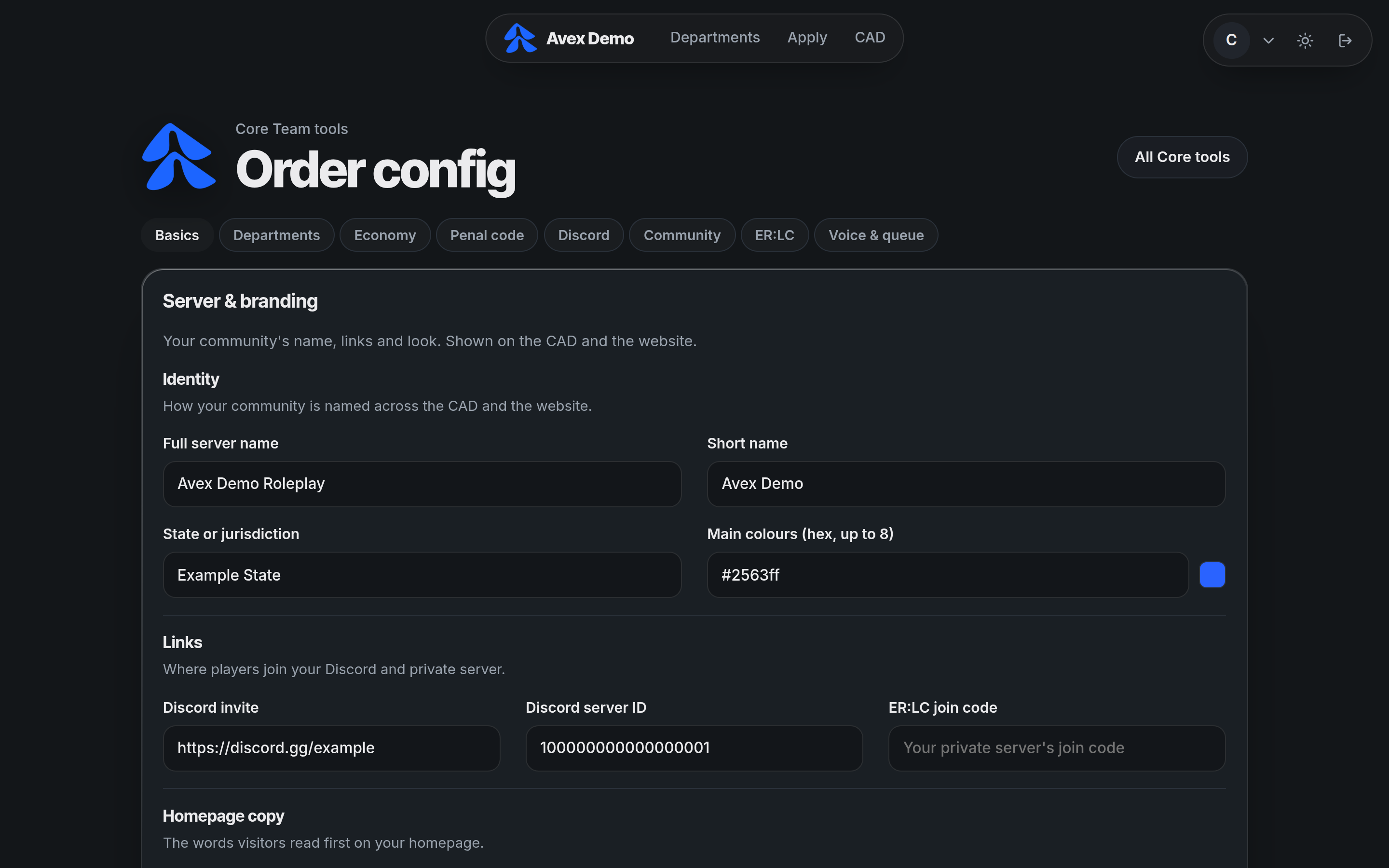
The Layout
The page is split into tabs. Each tab has its own Save button, and saving one tab never changes another.
| Tab | What it covers |
|---|---|
| Basics | Server name, jurisdiction, colours, links, homepage text, logo and banner |
| Departments | Every department and its ranks, callsigns, Discord roles and application |
| Economy | Starting money, hourly pay limits and membership claims |
| Penal code | The charges available on the CAD |
| Discord | Community and staff servers, access roles, badges and bot channels |
| Community | Community name and tagline for feedback and sign-in |
| ER:LC | Your private server key, duty sync roles and the live feed |
| Voice & queue | Proximity voice, voice sweep, queue role and Discord sync |