Basics
Set your community's name, links, homepage text, colours, logo and banner.
The Basics tab holds your community's identity. These values appear across the CAD and your public website.
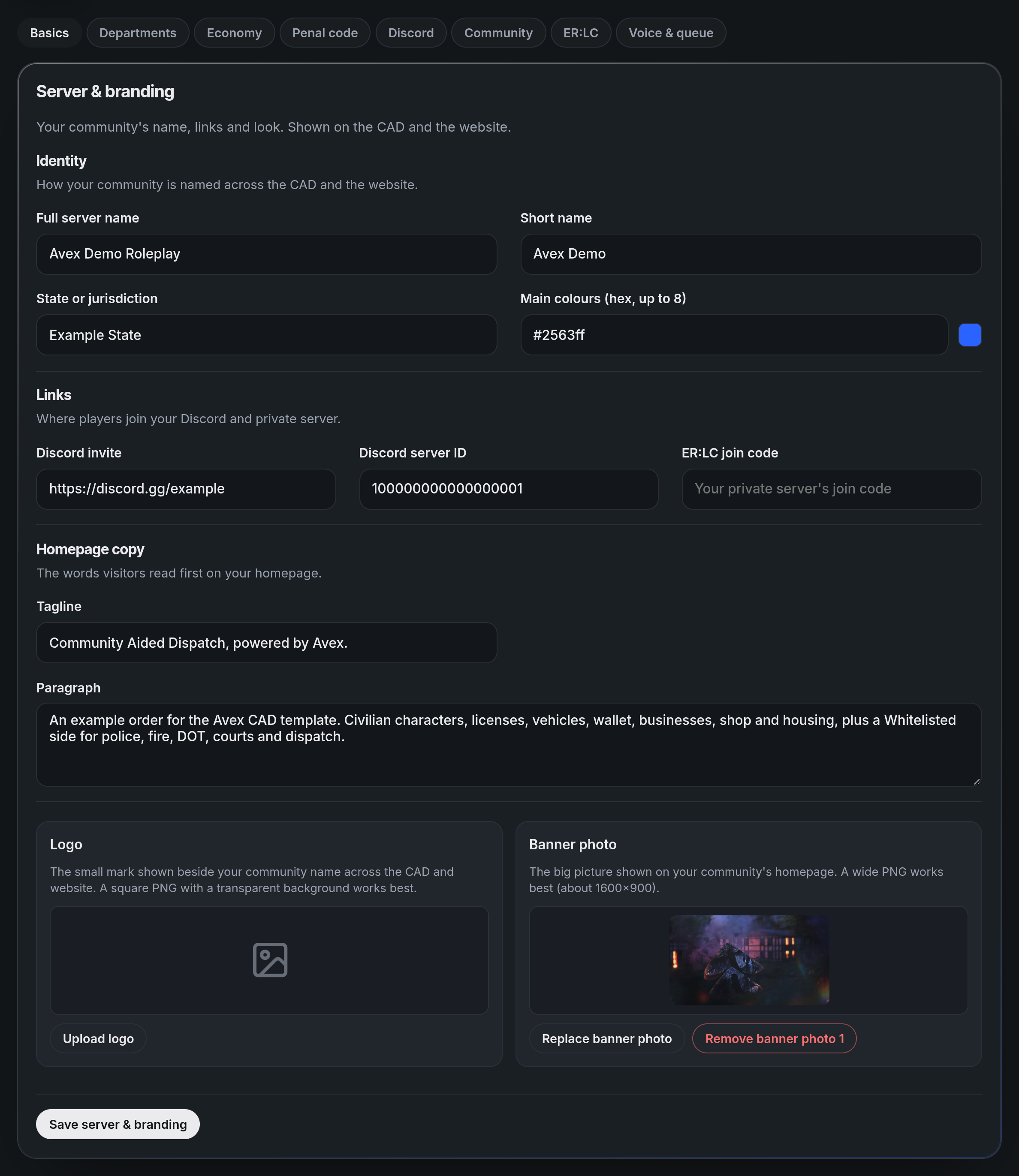
Identity
How your community is named across the CAD and the website.
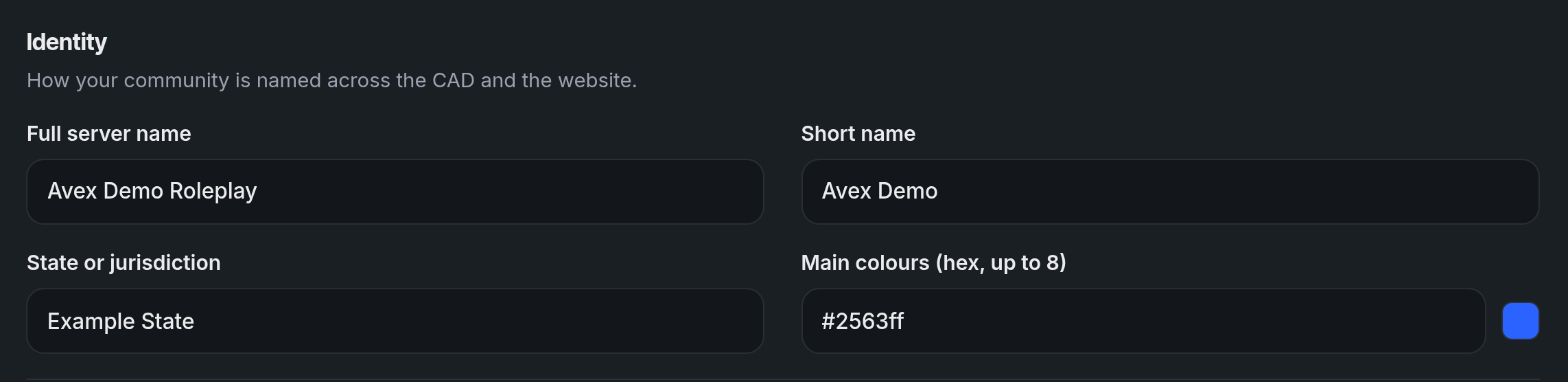
| Field | Description | Limit |
|---|---|---|
| Full server name | Your community's full name, for example Liberty County Roleplay. Used in page titles and headings. | 80 characters |
| Short name | A shorter name used where space is tight, such as the site header. | 80 characters |
| State or jurisdiction | Optional. The state or area your community roleplays in, for example San Andreas. | 80 characters |
| Main colours | Your brand colours as hex codes, separated by commas, for example #1b2a4a, #c8102e. A swatch previews each colour. | Up to 8 colours |
Hex colours only
Each colour must be a hex code such as #1b2a4a. Anything else stops the save with a message naming the colour to fix.
Links
Where players join your Discord and private server.

| Field | Description |
|---|---|
| Discord invite | A permanent invite to your community Discord, for example https://discord.gg/yourcode. Used by the Join Discord buttons on your website. |
| Discord server ID | Your community Discord server's ID. |
| ER:LC join code | Optional. Your private server's join code, shown to players on the website's getting started steps. |
Use a permanent invite
In Discord, set the invite to Expire After: Never so your website's buttons keep working.
Homepage Copy
The words visitors read first on your homepage.
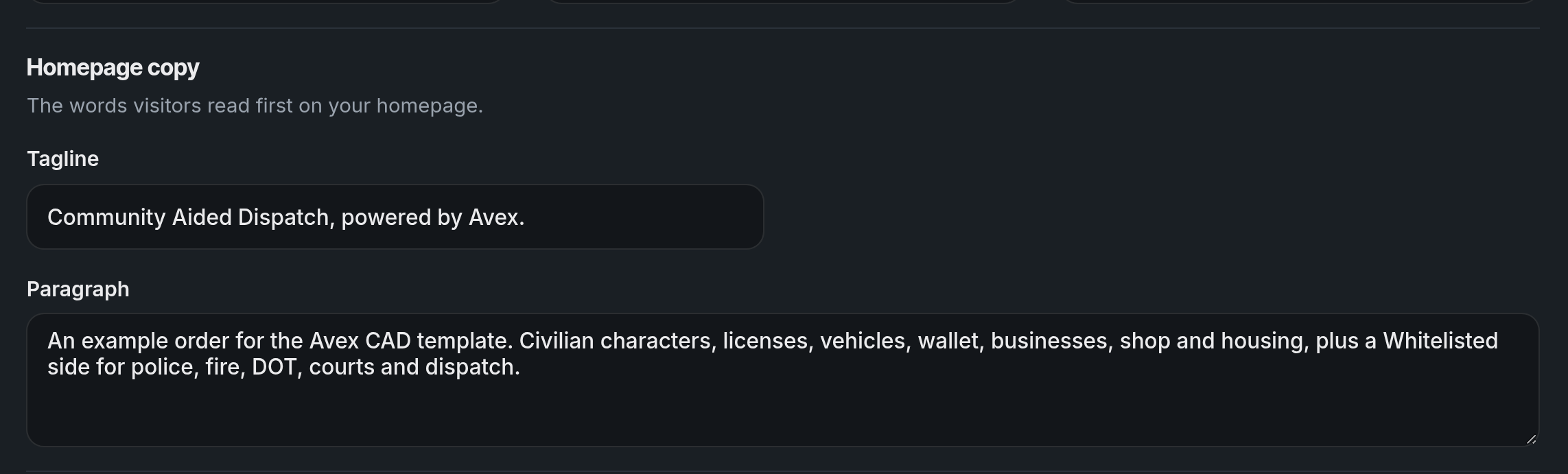
| Field | Description | Limit |
|---|---|---|
| Tagline | A single line shown under your community name at the top of the homepage. | 140 characters |
| Paragraph | A short introduction to your community, shown under the tagline. | 1,500 characters |
Logo and Banner
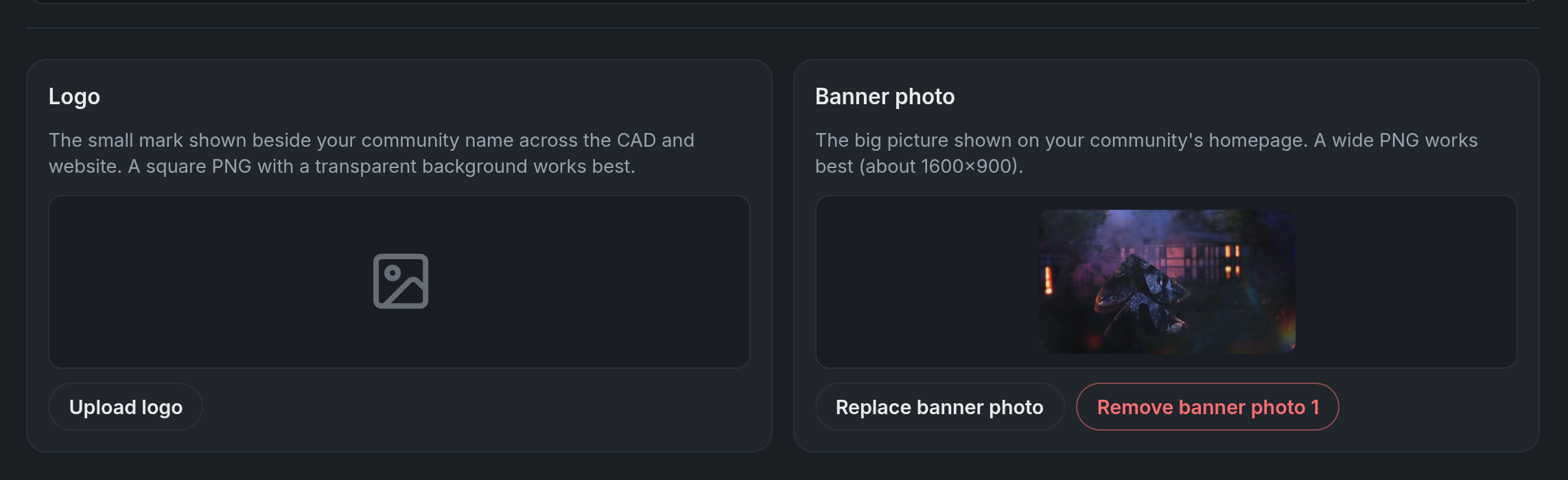
| Image | Where it appears | Recommended format |
|---|---|---|
| Logo | The small mark beside your community name across the CAD and website. | A square PNG with a transparent background |
| Banner photo | The large picture on your community's homepage. | A wide PNG, about 1600×900 |
Select Upload logo or Upload banner photo to choose an image. Once uploaded, the buttons change to Replace and Remove. Uploads accept PNG, JPEG, GIF and WebP images up to 8 MB.
Upload buttons missing?
If you see "Image uploads aren't turned on for this site yet", contact Avex to enable uploads for your site.
Saving
Select Save server & branding. The changes apply to the CAD and website straight away.