Department Discords
Set every department's Discord invite and server from one screen.
Department Discords lets you set the Discord invite and server for every department at once, without opening each one. Open it with the Department Discords button at the top of the department list.
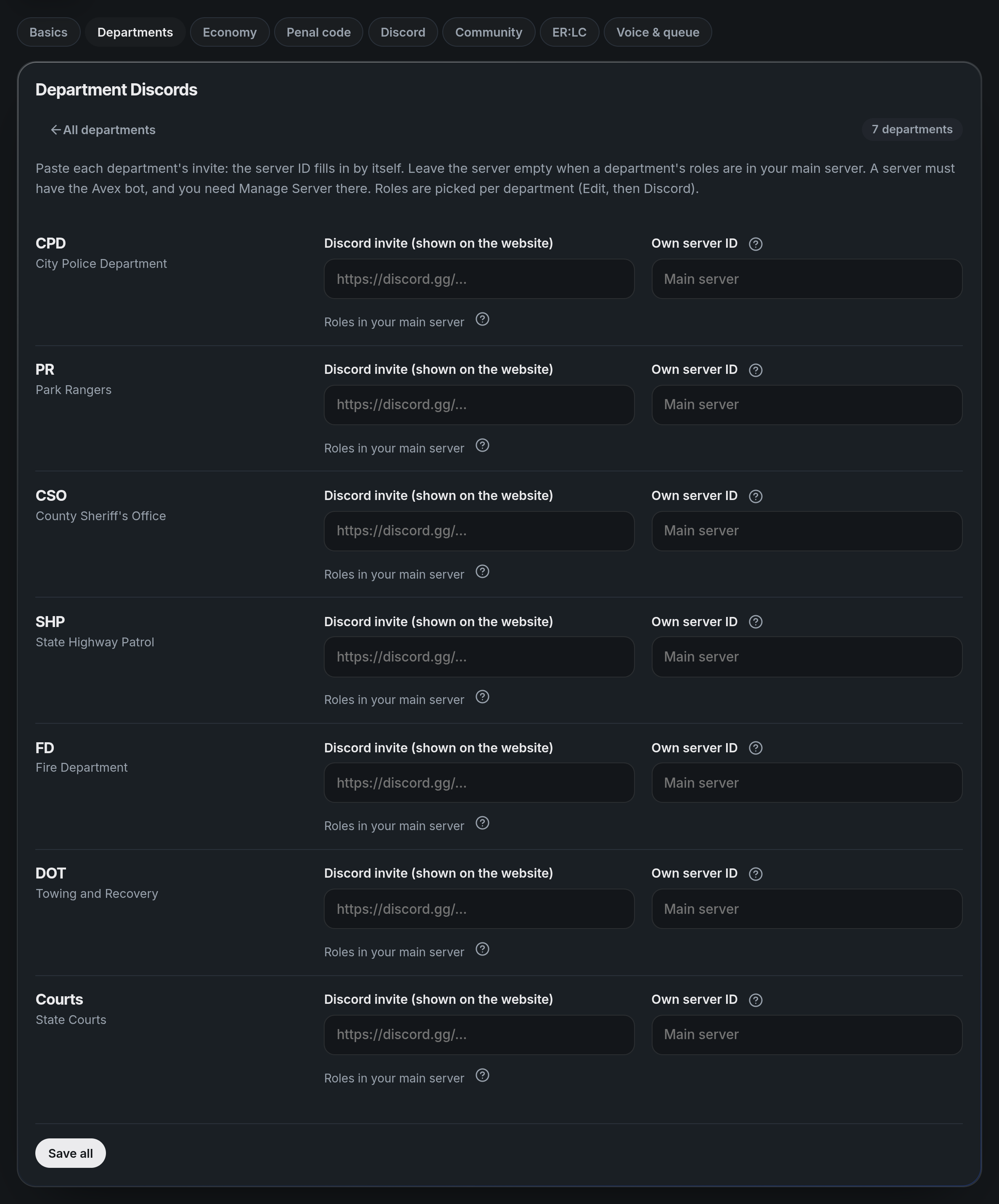
Fields
| Field | Description |
|---|---|
| Discord invite (shown on the website) | The department's Discord invite, used by its Join Discord button on the website. |
| Own server ID | Fills in automatically when you paste an invite. Leave empty when the department's roles are in your main server. |
Each row shows Roles in your main server when no separate server is set.
Setting Up Department Servers
Add the Avex bot
Invite the Avex bot to each department server you plan to connect. You need Manage Server or Administrator in that server.
Paste each invite
Paste each department's invite into its row. The server ID fills in by itself.
Save all
Select Save all. Each server is checked before saving.
Pick roles per department
Roles are still chosen per department. Open the department with Edit, go to its Discord tab, and choose its roles. See Discord Roles.
Invite errors
If an invite has expired or been deleted, the save stops with a message saying the invite doesn't work. Create a new invite set to never expire and paste it again.