Discord
Connect your Discord servers, choose access roles and set where the bot posts.
The Discord tab connects your community and staff servers, chooses the roles that grant access, and sets where the bot posts. Every ID is checked before saving, so a typo can't lock you out.
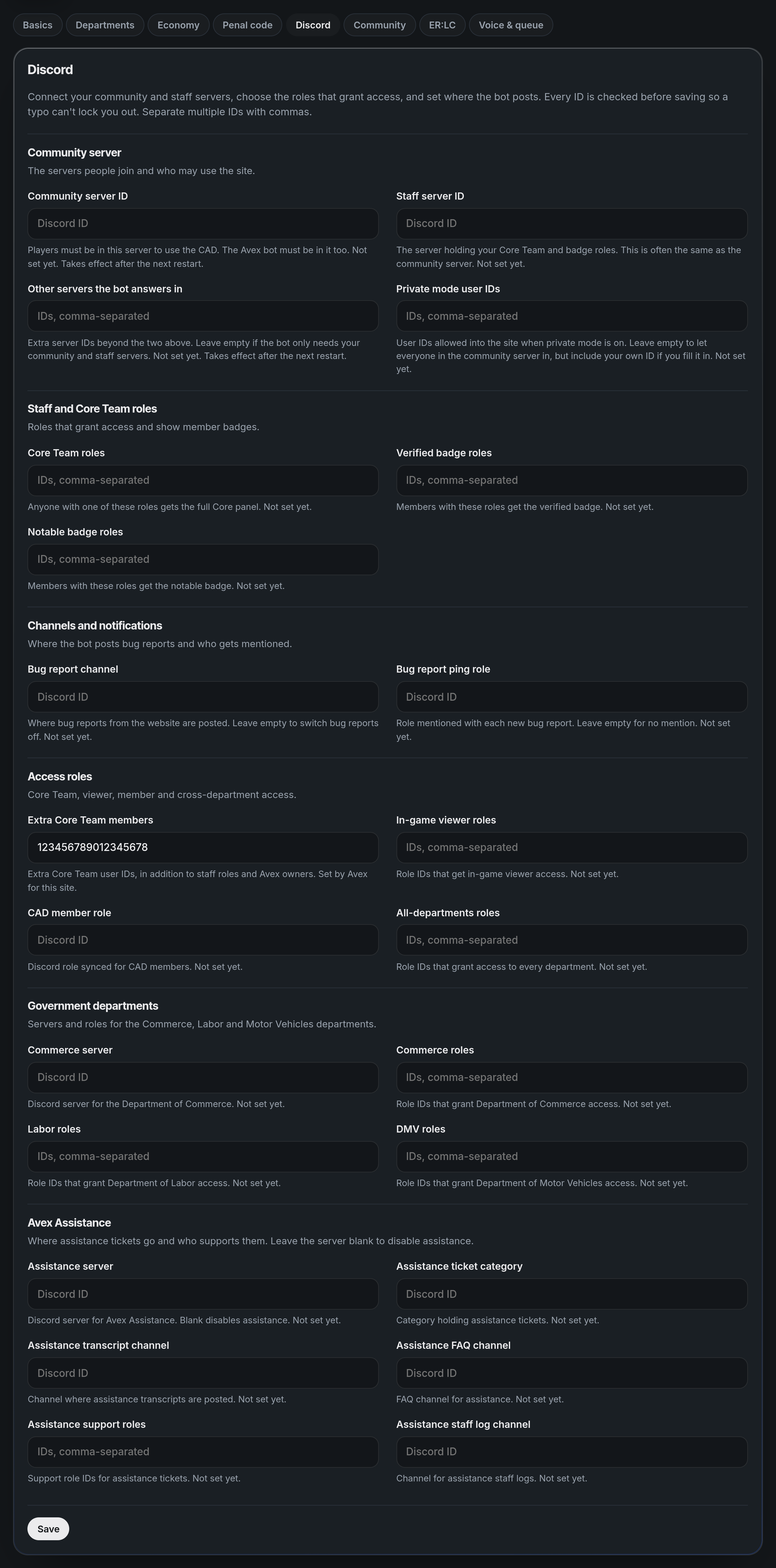
Entering IDs
Fields on this tab take Discord IDs. Separate several IDs with commas. To copy an ID, turn on Developer Mode in Discord under Settings, Advanced, then right-click a server, role, channel or user and choose Copy ID.
Community Server
The servers people join and who may use the site.
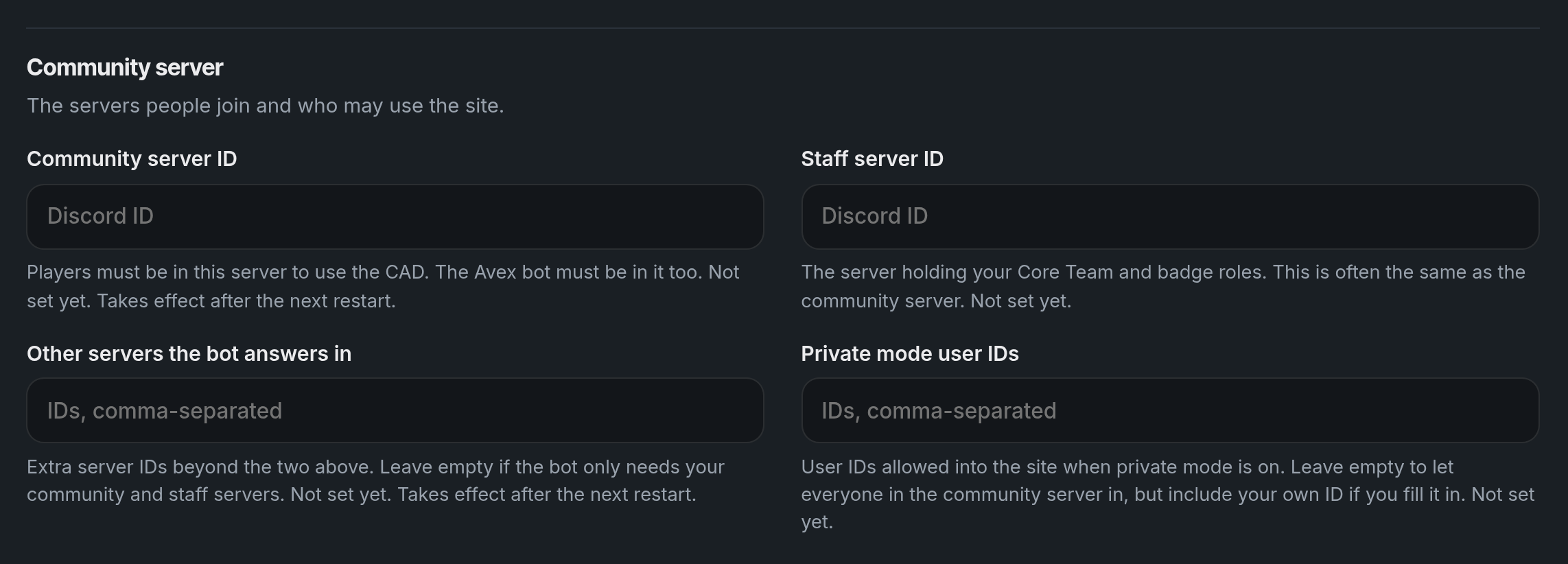
| Field | Description |
|---|---|
| Community server ID | Players must be in this server to use the CAD. The Avex bot must be in it too. Takes effect after the next restart. |
| Staff server ID | The server holding your Core Team and badge roles. This is often the same as the community server. |
| Other servers the bot answers in | Extra server IDs beyond the two above. Leave empty if the bot only needs your community and staff servers. Takes effect after the next restart. |
| Private mode user IDs | Only these Discord users can sign in while private mode is on. Leave empty to let everyone in the community server in. |
Private mode
If you fill in Private mode user IDs, include your own ID. The save is refused without it, so you can't lock yourself out.
Server permissions
To connect a server, the Avex bot must be in it and you must have Manage Server or Administrator there.
Staff and Core Team Roles
Roles that grant access and show member badges.
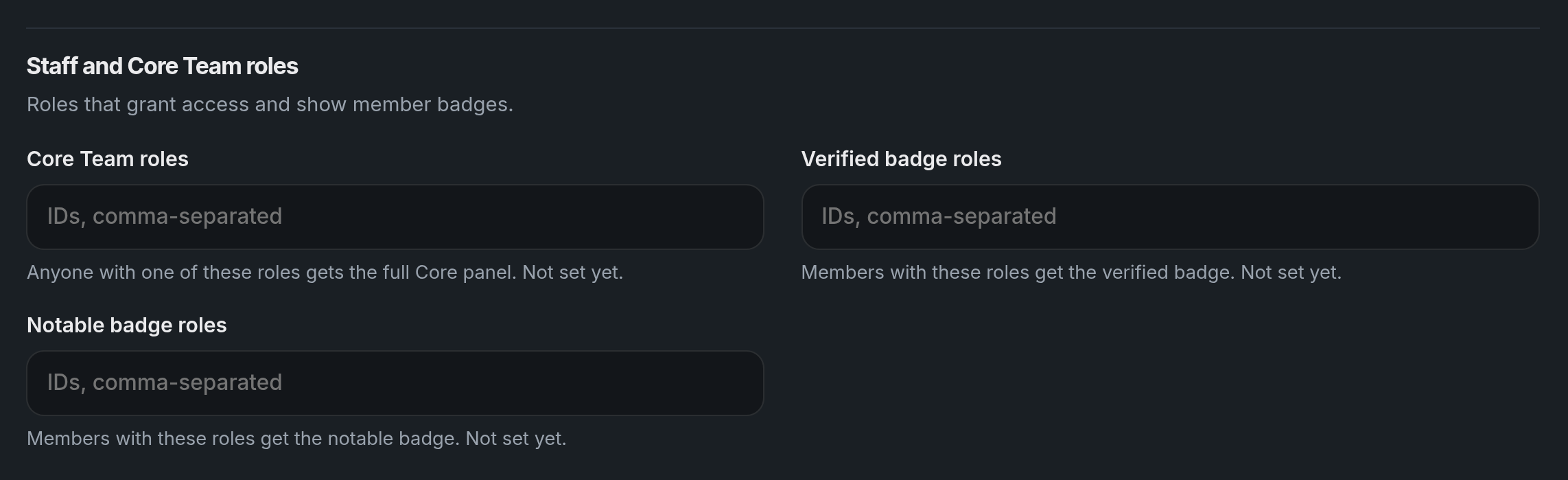
| Field | Description |
|---|---|
| Core Team roles | Anyone with one of these roles gets the full Core panel. |
| Verified badge roles | Members with these roles get the verified badge. |
| Notable badge roles | Members with these roles get the notable badge. |
Channels and Notifications
Where the bot posts bug reports and who gets mentioned.
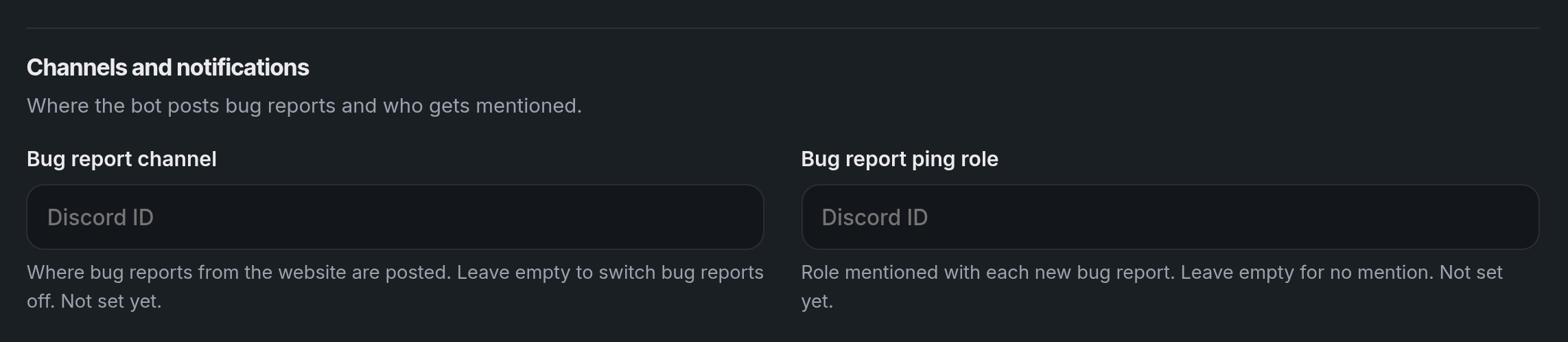
| Field | Description |
|---|---|
| Bug report channel | Where bug reports from the website are posted. Leave empty to switch bug reports off. |
| Bug report ping role | The role mentioned with each new bug report. Leave empty for no mention. |
Access Roles
Core Team, viewer, member and cross-department access.
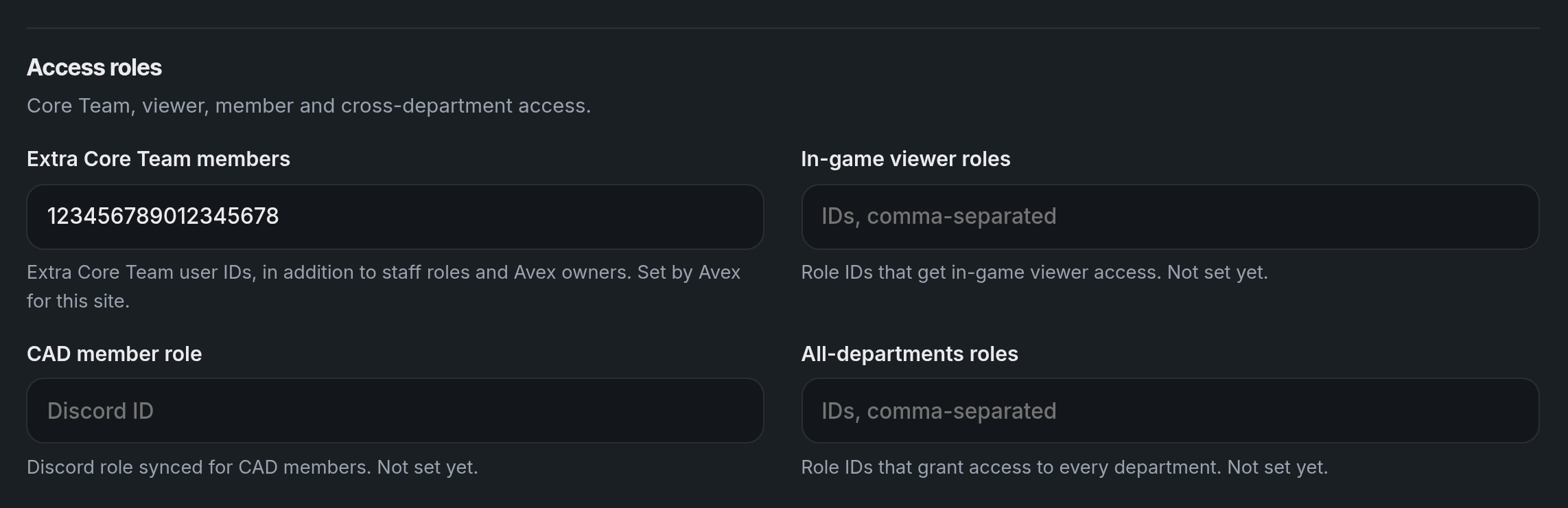
| Field | Description |
|---|---|
| Extra Core Team members | User IDs that get Core Team access in addition to your Core Team roles. |
| In-game viewer roles | Role IDs that get in-game viewer access. |
| CAD member role | A Discord role kept in sync for everyone with a CAD account. |
| All-departments roles | Role IDs that grant access to every department. Useful for senior staff. |
Government Departments
Servers and roles for the Commerce, Labor and Motor Vehicles departments.
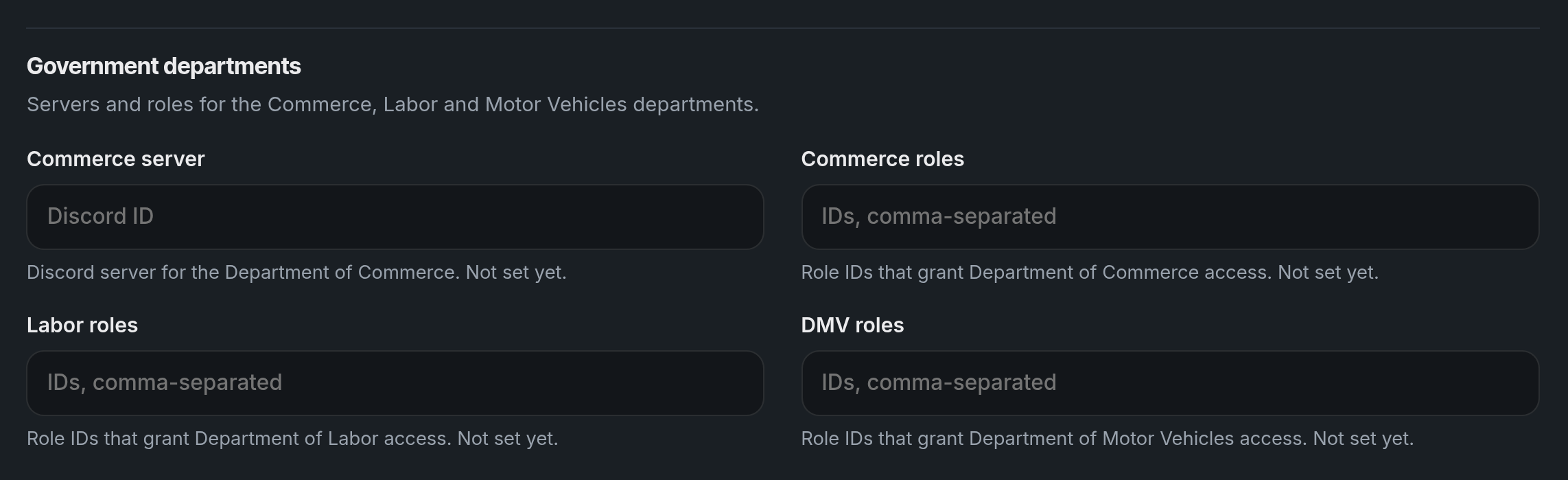
| Field | Description |
|---|---|
| Commerce server | The Discord server for the Department of Commerce. |
| Commerce roles | Role IDs that grant Department of Commerce access. |
| Labor roles | Role IDs that grant Department of Labor access. |
| DMV roles | Role IDs that grant Department of Motor Vehicles access. |
Avex Assistance
Where assistance tickets go and who supports them.
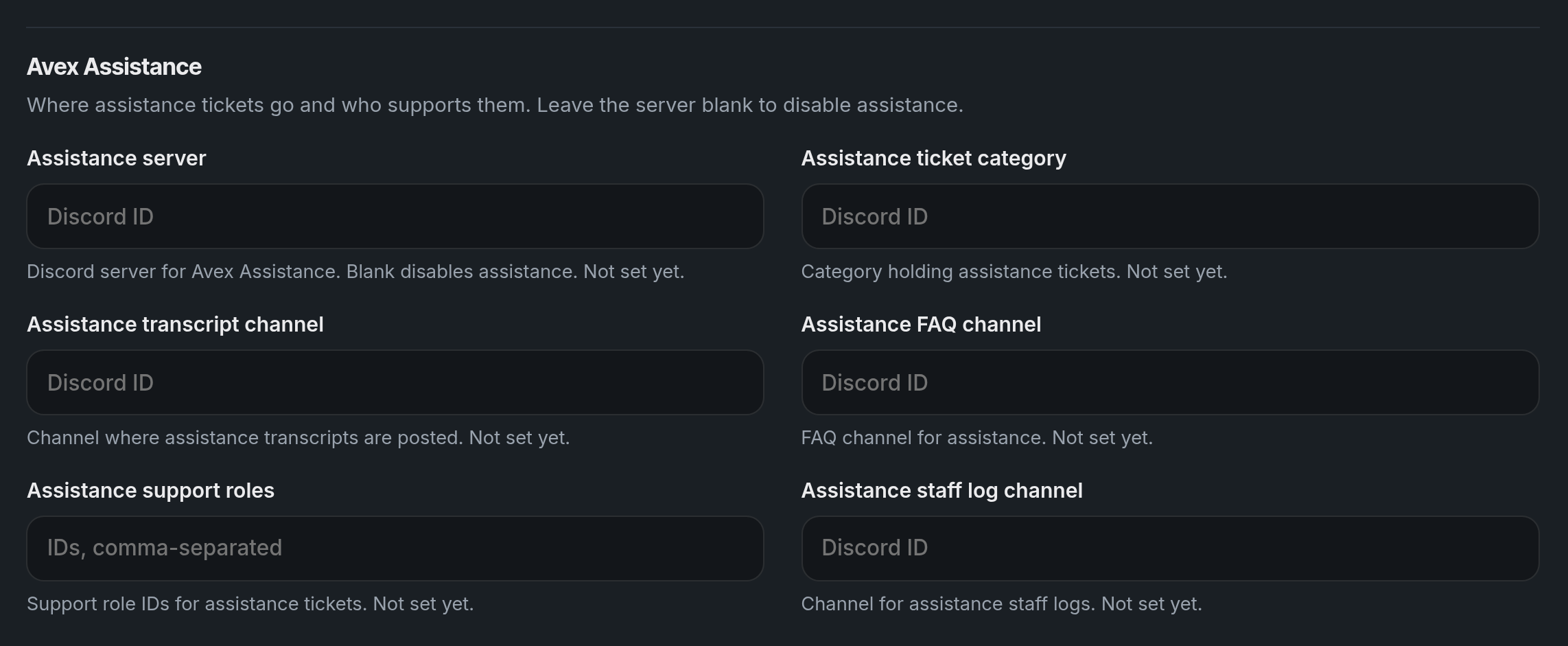
| Field | Description |
|---|---|
| Assistance server | The Discord server for Avex Assistance. Leave empty to turn assistance off. |
| Assistance ticket category | The category that holds assistance tickets. |
| Assistance transcript channel | Where transcripts of closed tickets are posted. |
| Assistance FAQ channel | Your FAQ channel for assistance. |
| Assistance support roles | Role IDs that can handle assistance tickets. |
| Assistance staff log channel | Where staff actions on tickets are logged. |
Saving
Select Save at the bottom of the tab. If a saved setting needs a restart, a Restart to finish card appears at the top of the page. See Restarting the Site.