Discord Roles
Choose the Discord roles that give people access to a department on the CAD.
The Discord tab in the department editor decides who belongs to the department. People gain access on the CAD through their Discord roles.
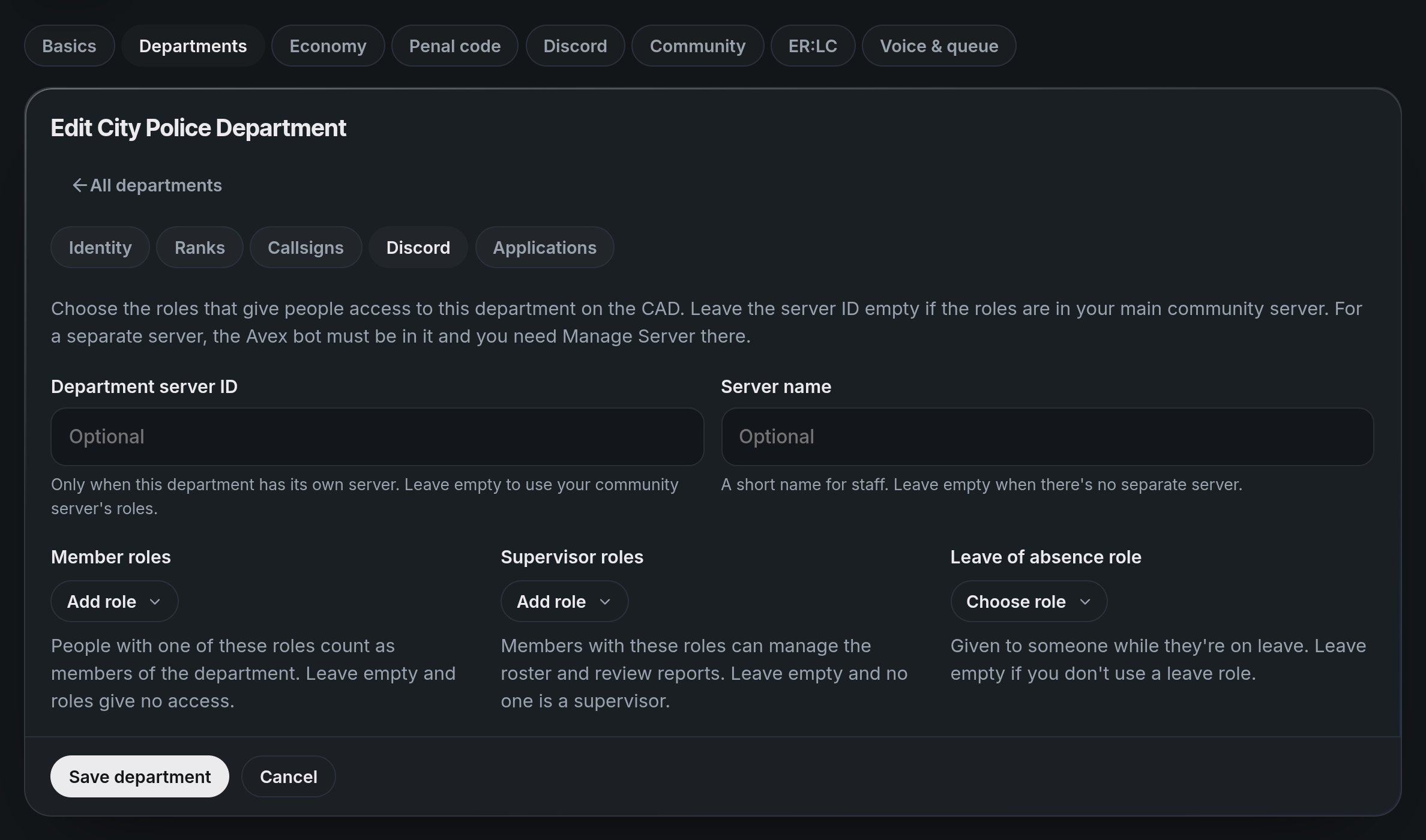
Department Server
| Field | Description |
|---|---|
| Department server ID | Only needed when the department has its own Discord server. Leave empty to use roles from your community server. |
| Server name | A short name for the department's server, shown to staff. Leave empty when there is no separate server. |
Using a separate server
The Avex bot must be in the department's server, and you need Manage Server or Administrator there. Otherwise the server can't be connected.
Roles
| Field | Description |
|---|---|
| Member roles | People with one of these roles count as members of the department. Leave empty and roles give no access. |
| Supervisor roles | Members with these roles can manage the roster and review reports. Leave empty and no one is a supervisor. |
| Leave of absence role | Given to someone while they are on leave. Leave empty if you do not use a leave role. |
To add a role, select Add role or Choose role and pick it from the list. The list shows roles from the department's server, or from your community server when no department server is set.
Roles not showing?
The picker only lists roles once your community server is connected on the Discord tab. If it says "No roles to pick", set your Community server ID first.
How Access Works
A member gets a role
A member receives one of the department's Member roles in Discord.
The CAD picks it up
The next time the member signs in or their roles refresh, the department appears for them on the CAD.
Ranks follow rank roles
If a rank has a Discord role, holding that role places the member on the roster at that rank.
Select Save department when you are done.