Applications
Build a department's application form and decide where new applications go.
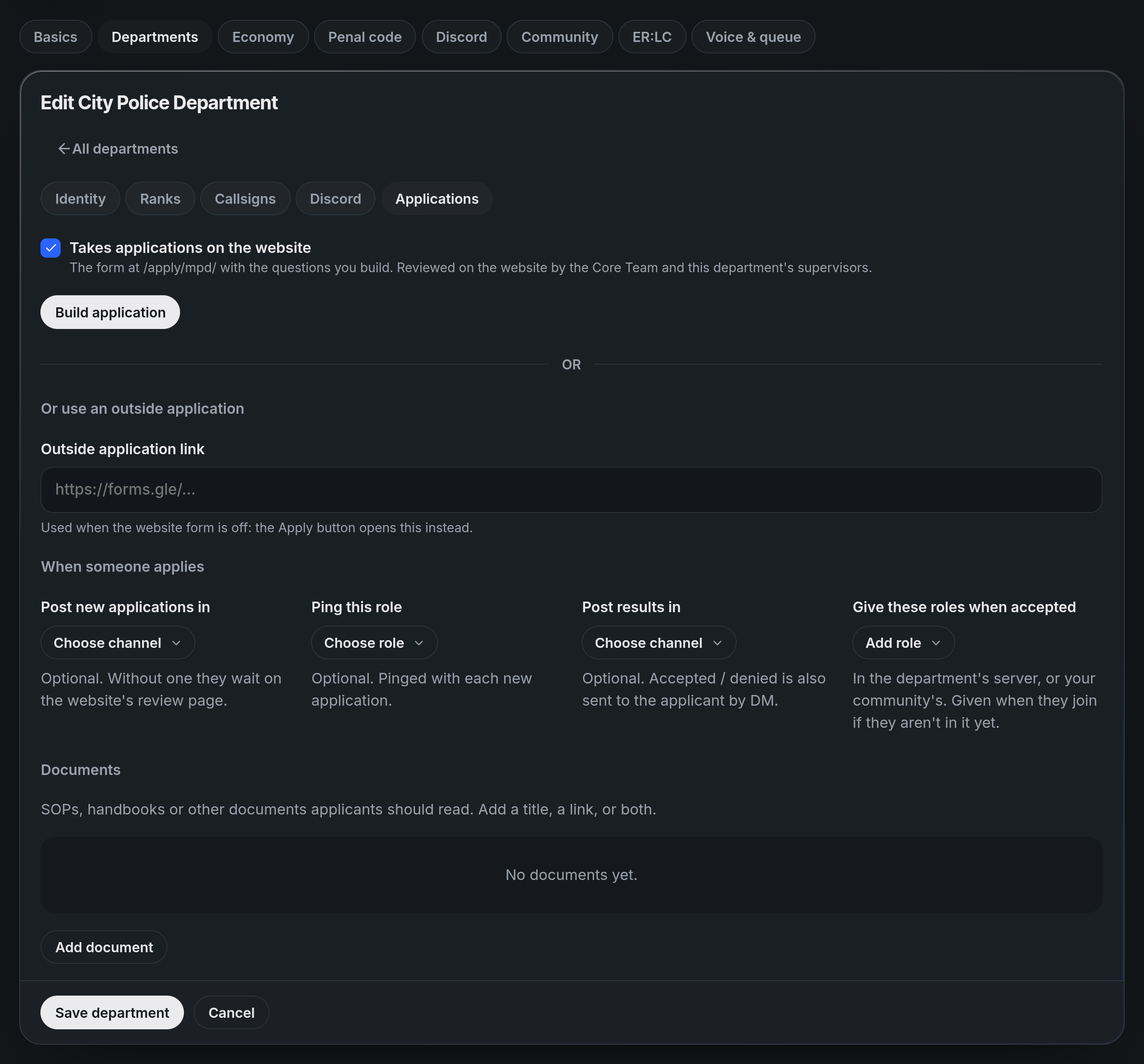
The Applications tab controls how people apply to join a department. You can take applications on your website with a form you build, or link to an outside form.
Choosing a Method
Turn on Takes applications on the website. Applicants fill in your questions at /apply/<department-id>/ on your site, signed in with Discord. The Core Team and the department's supervisors review applications on the website.
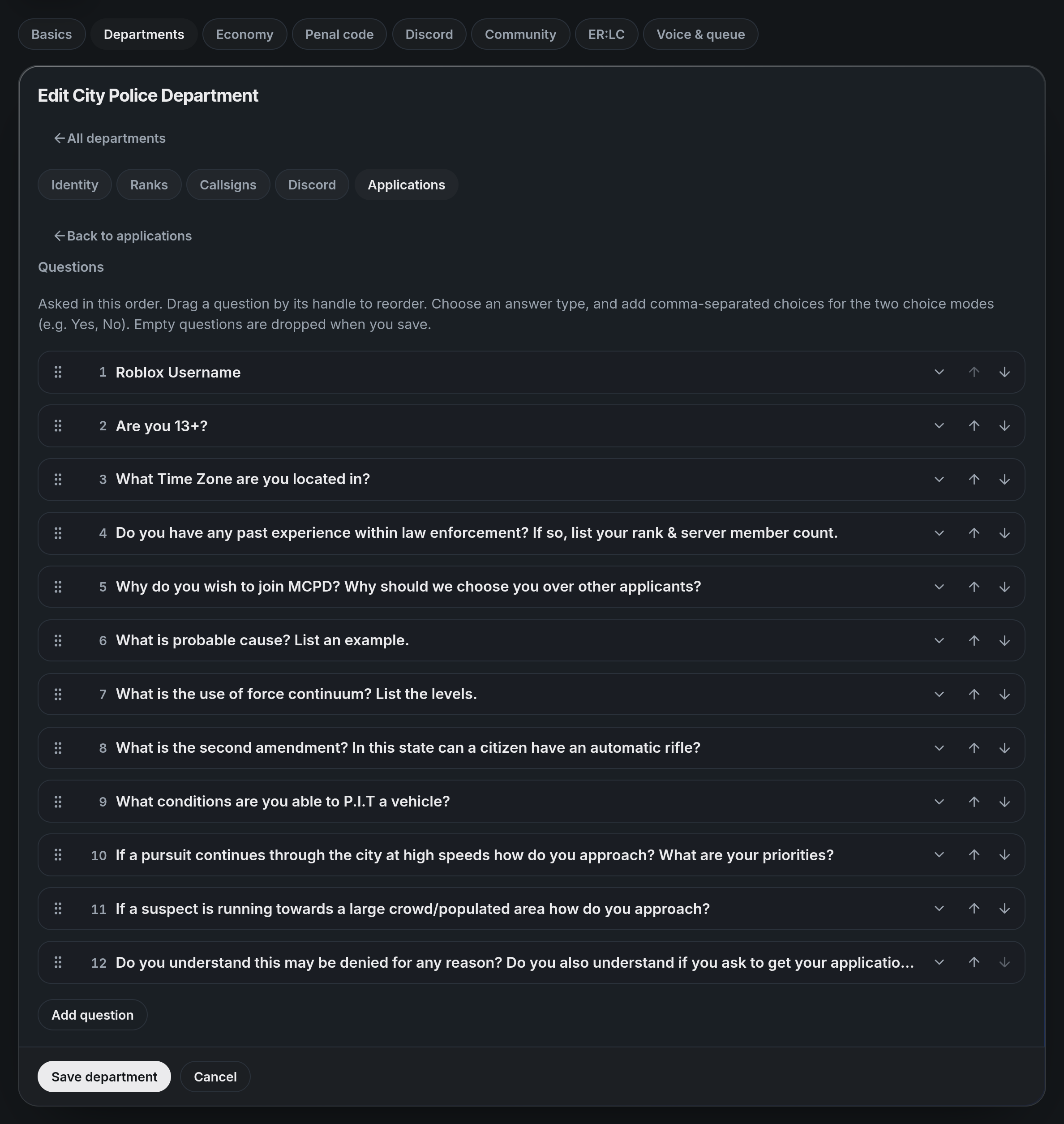
Select Build application to write your questions. See Building the Form.
Building the Form
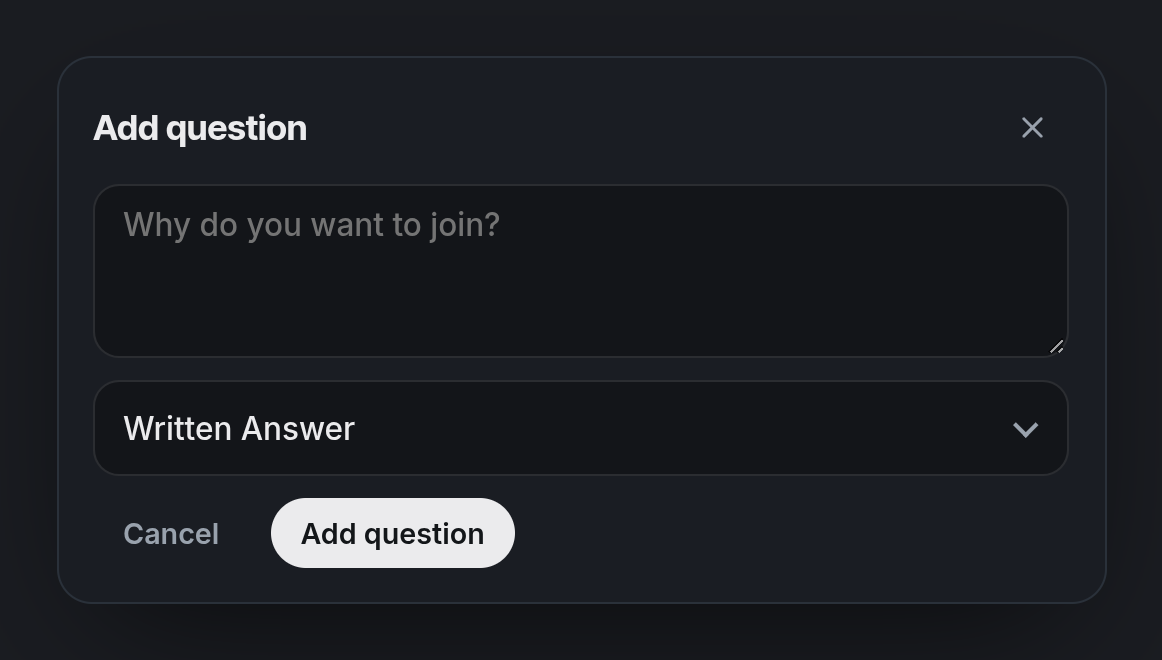
Choose the answer type
| Answer type | Applicant sees |
|---|---|
| Written Answer | A text box. |
| Multiple Choice | A list of choices. They pick one. |
| Select All | A list of choices. They pick any number. |
For the two choice types, add your choices separated by commas, for example Yes, No.
Order your questions
Drag a question by its handle to reorder it. Empty questions are dropped when you save.
Go back
Select Back to applications to return to the rest of the tab.
When Someone Applies
| Field | Description |
|---|---|
| Post new applications in | Optional. A Discord channel where each new application is posted. Without one, applications wait on the website's review page. |
| Ping this role | Optional. A role mentioned with each new application. |
| Post results in | Optional. A channel where accepted and denied results are posted. Applicants are also told by direct message. |
| Give these roles when accepted | Roles given to accepted applicants, in the department's server or your community server. If they are not in the server yet, they get the roles when they join. |
Documents
Add SOPs, handbooks or other documents applicants should read before applying. Select Add document and give each one a Display title, a Link, or both.
Closing Applications
To stop taking applications, turn off Takes applications on the website and leave Outside application link empty. The department then shows Closed in the department list.
Select Save department when you are done.