Ranks
Build a department's rank ladder with slots, quotas and Discord roles.
The Ranks tab holds the department's rank ladder, from the highest rank at the top to the lowest at the bottom. The order here is the order used on the roster.
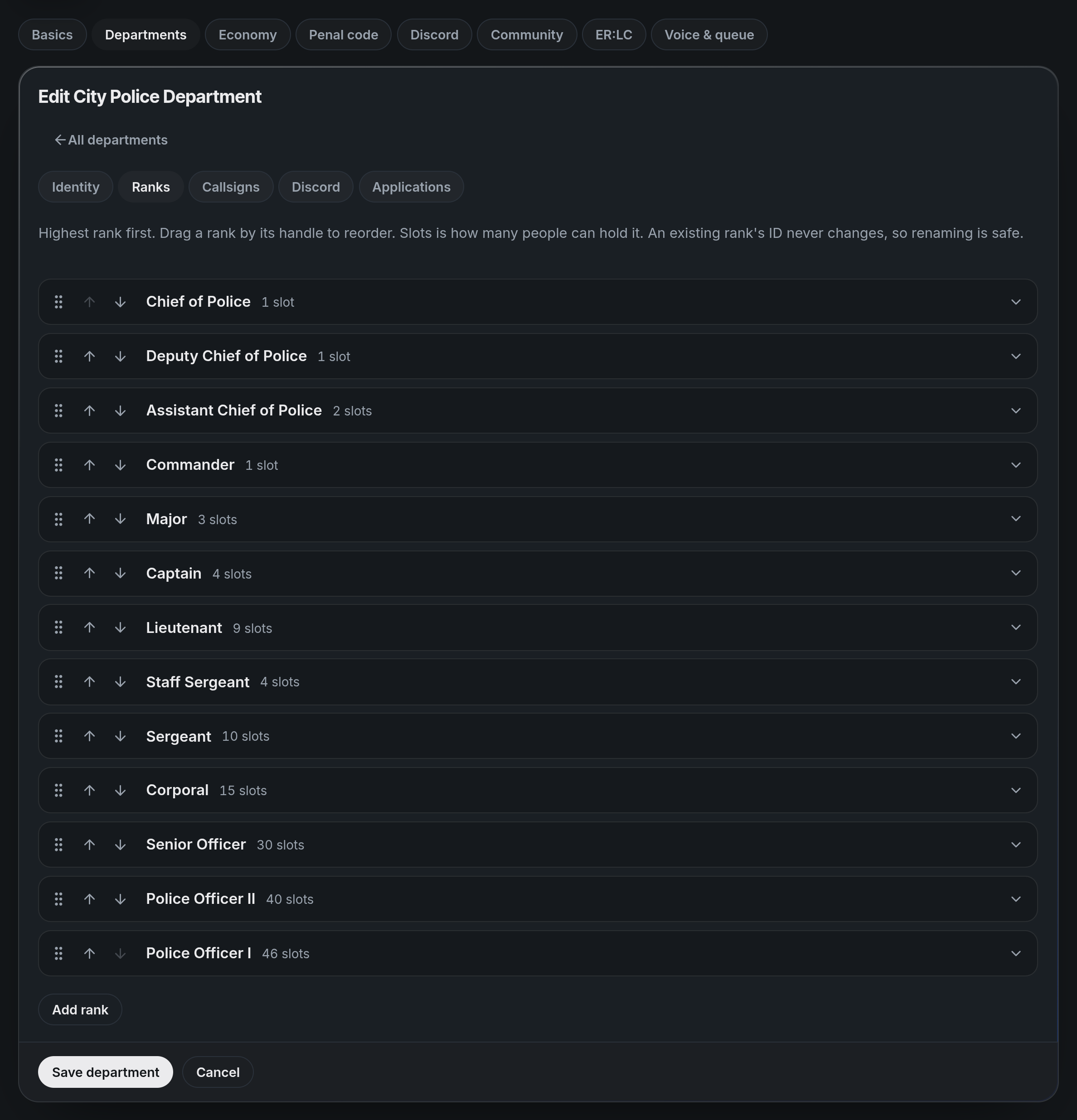
Rank Settings
Select a rank to expand it.
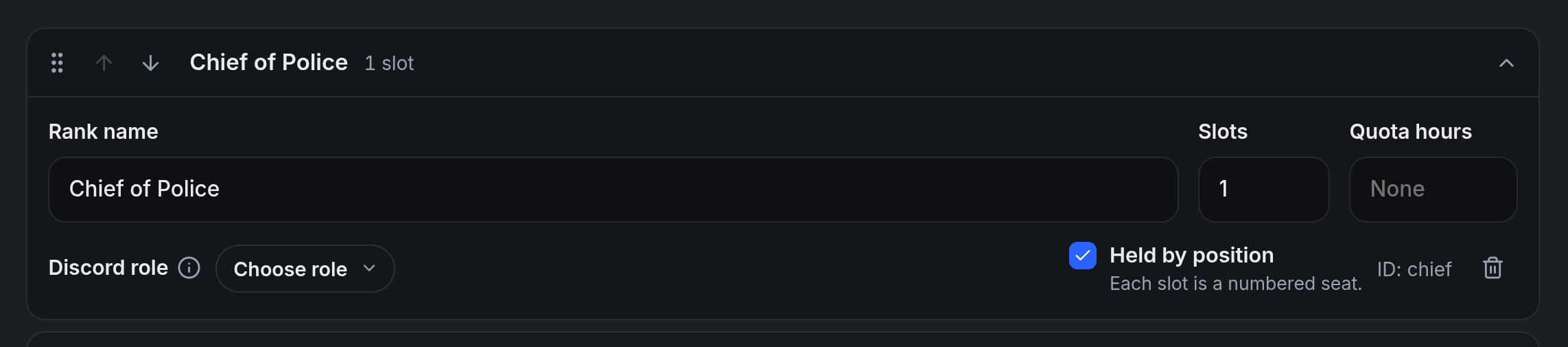
| Setting | Description |
|---|---|
| Rank name | The name shown on the roster and CAD. |
| Slots | How many people can hold the rank at once. |
| Quota hours | The on-duty hours expected from people at this rank. Leave empty for no quota. |
| Discord role | Holding this role puts someone on the roster at this rank. |
| Held by position | Each slot becomes a numbered seat, such as Lieutenant 1 and Lieutenant 2, instead of a shared pool. |
Each rank also has an ID, shown at the bottom of the card. The ID never changes, so renaming a rank is always safe.
Adding a Rank
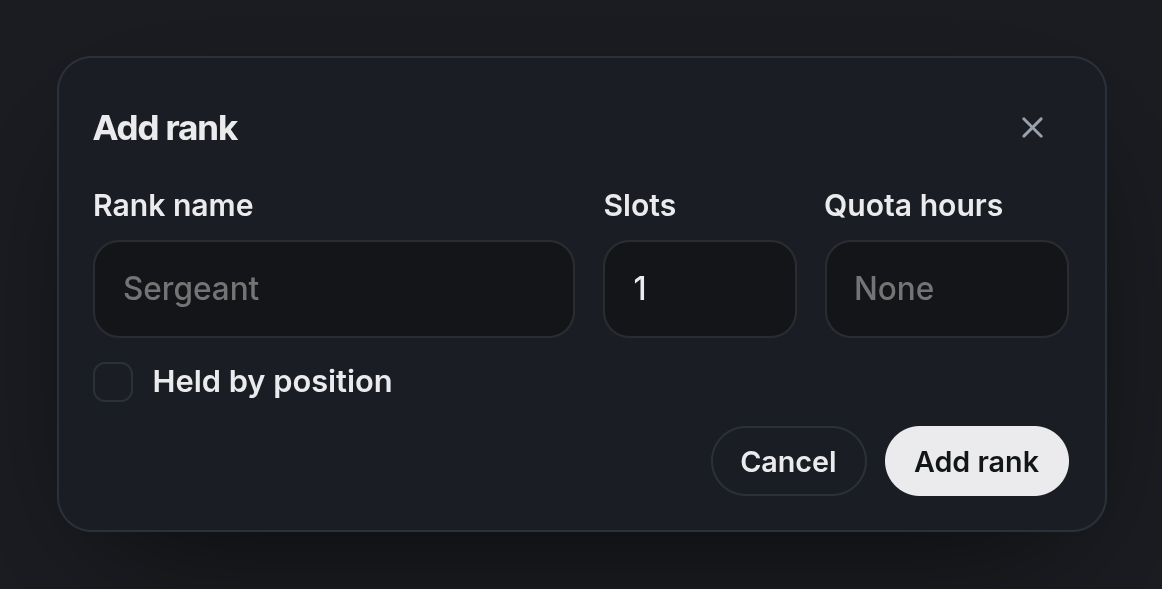
Select Add rank
Select Add rank under the list.
Fill in the rank
Enter the Rank name, Slots and, if you use quotas, Quota hours. Tick Held by position if each slot is a numbered seat. Then select Add rank.
Move it into place
New ranks are added at the bottom of the list. Drag the rank by its handle, or use the up and down arrows, to place it in the ladder.
Reordering and Removing
- Drag a rank by its handle on the left, or use the up and down arrows.
- Remove a rank with the delete button in its expanded card. Anyone holding the rank loses it when you save the department.
Court departments
Ranks in a Judicial / Court department have an extra Attorney checkbox. Tick it on the rank your attorneys hold so judges can assign defence attorneys. The editor shows a reminder until one rank is marked.
Remember to select Save department when you are done.